Learning how to set a password on laptop is one of the easiest ways to protect your personal data. Your laptop holds important information documents, photos, passwords, and more. Setting a login password is the simplest and most effective way to protect your privacy and secure your computer from unauthorized access.
Follow this step-by-step guide to create a password for your Windows laptop no tech experience needed!
Let’s Get Started:
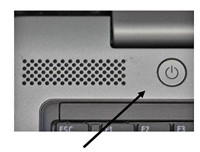
Step 1: Turn on Your Laptop
Press the power button and wait for your desktop screen to appear.
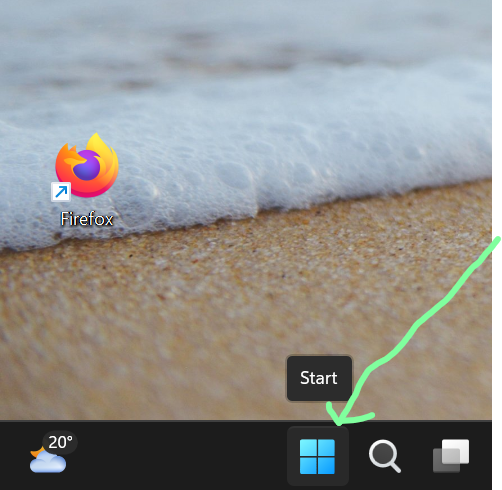
Step 2: Click the Start Button
It’s the small Windows logo at the bottom left corner of your screen.
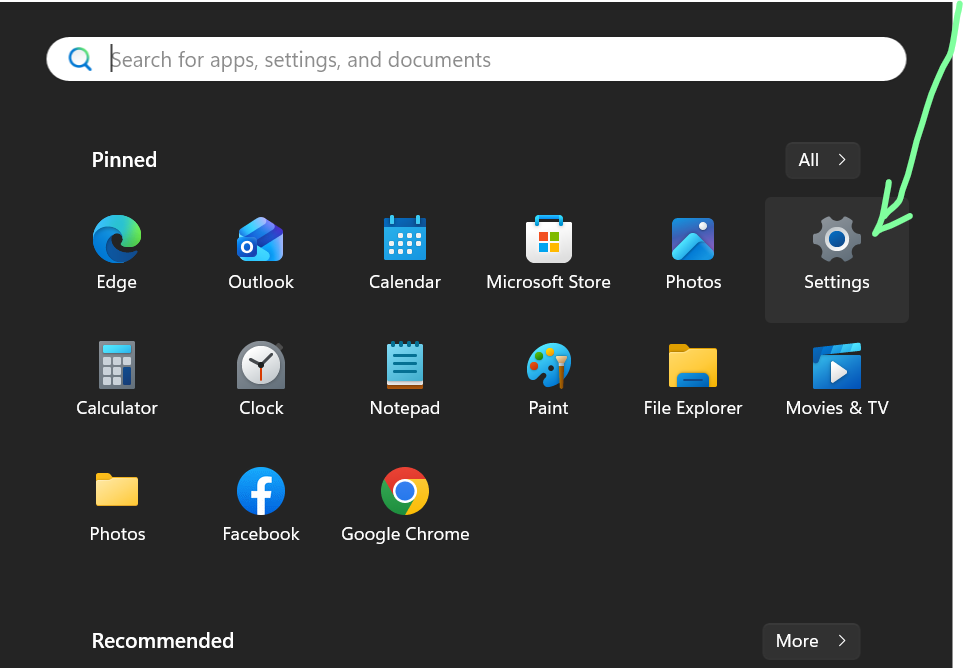
Step 3: Go to Settings
Click the gear icon to open the Settings window.
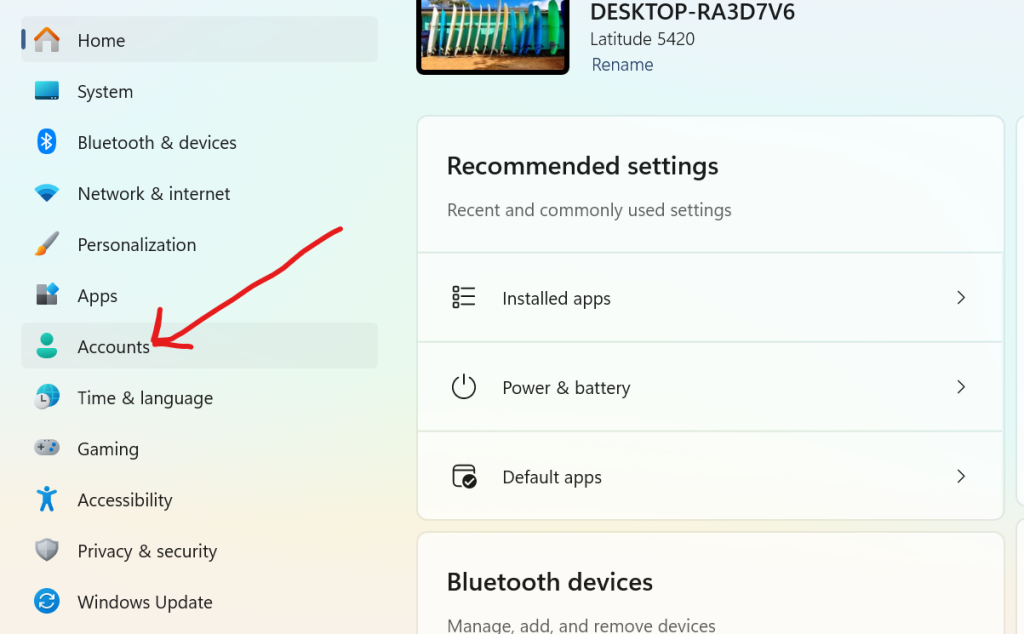
Step 4: Click on “Accounts”
You’ll find it among the options in Settings it usually has a person icon
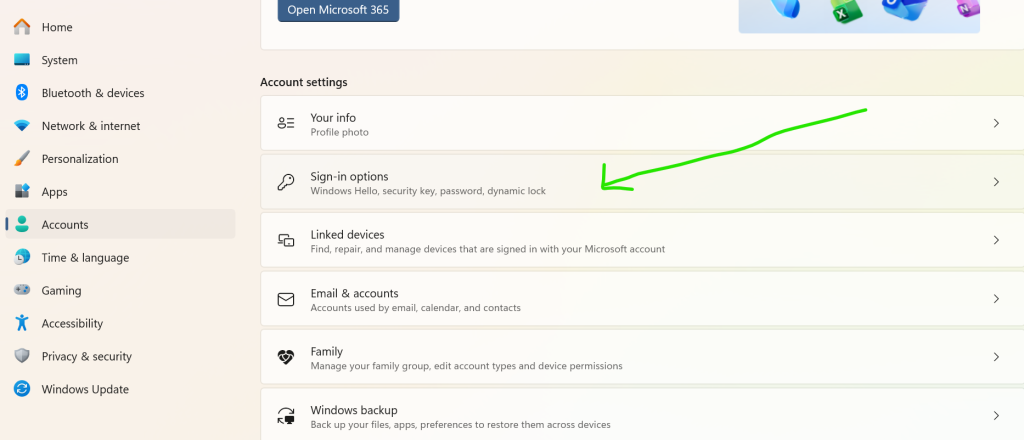
Step 5: Select “Sign-in options”
You’ll see this on the Right sidebar. Click it to open.
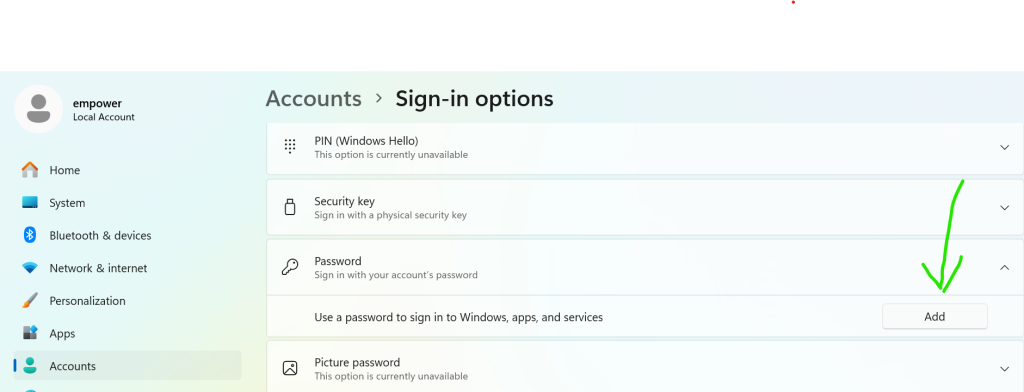
Step 6: Under “Password,” Click “Add”
If you don’t already have a password, you’ll see an Add button click it.
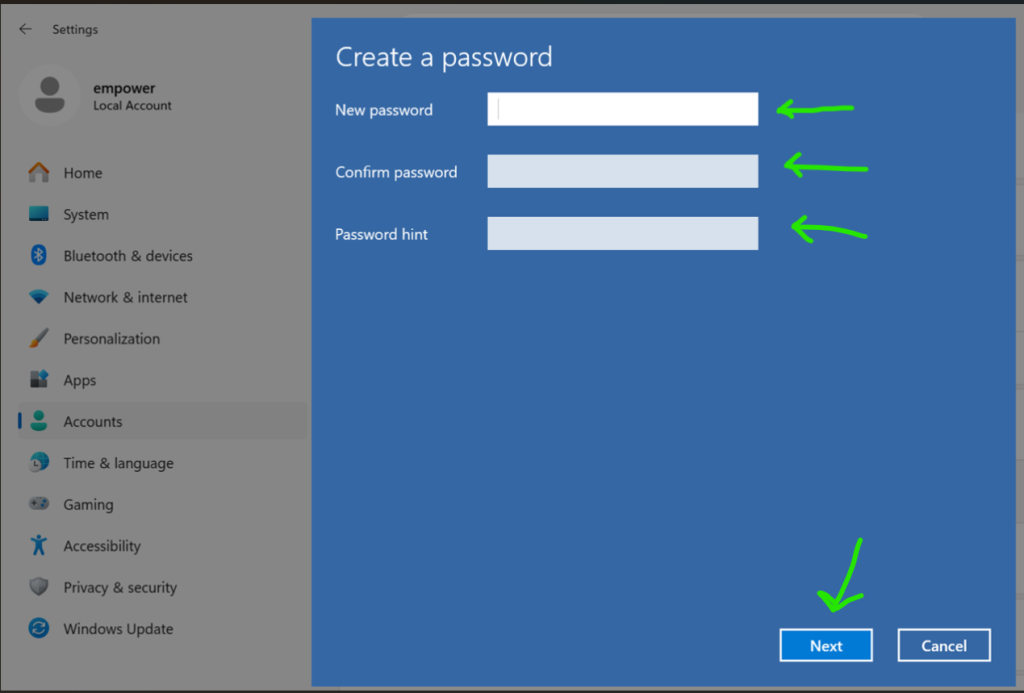
Step 7: Create Your New Password
Type in the password you want to use, then type it again to confirm.
You can also add a password hint to help you remember it later.
Step 8: Click “Finish”
Your new password will now be saved.
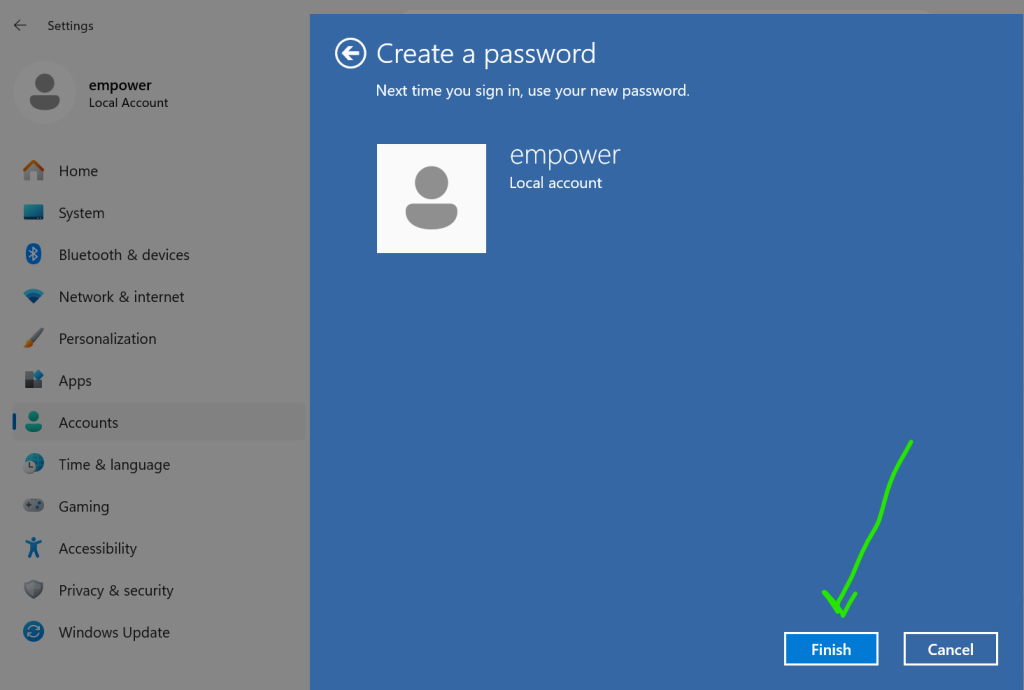
Step 9: Test Your Password
Press Windows key + L to lock your screen.
Now your PC requires your password enter the one you just created to unlock your computer.
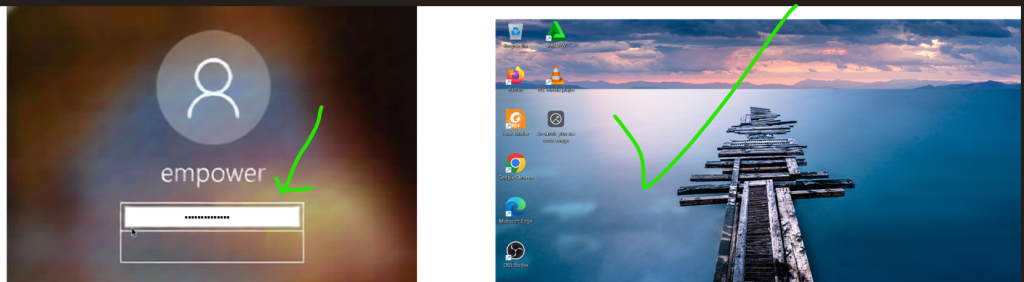
Your laptop is now protected with a password.
Bonus Tips for Creating a Strong Password
- Use at least 8 characters.
- Combine uppercase and lowercase letters, numbers, and symbols.
- Avoid using your name, birthday, or common words.
Example of a strong password: S@feLaptop2025
Weak password: password123
Why It’s Important
Setting a password is your first line of defense against data theft and privacy invasion.
Whether you use your laptop for work, school, or personal projects, this small step makes a big difference in keeping your files safe and private.
Final Thoughts
Setting a password on your laptop may seem like a small step, but it’s one of the most effective ways to protect your personal data and digital privacy.
With just a few clicks, you’ve strengthened your computer’s security and taken control of your information.
Learning how to secure your laptop is just one part of becoming digitally empowered.
At Simplified IT Institute (SIT), we’re dedicated to bridging the digital gap by providing education, tools, and mentorship to underserved communities.
Whether you want to build your computer skills, explore tech careers, or strengthen your online safety knowledge, SIT offers free and accessible resources to help you thrive in today’s digital world.